
How to reach a US audience on TikTok and Instagram without a SIM
The exact phone, proxy and App Store setup we use to put new accounts in front of a US audience from abroad - with real costs and the TikTok Shop check.
Why location beats language for US reach
TikTok and Instagram decide who sees your first uploads partly from where the account appears to live: the device region, the network it connects through, the app store it installs from. Posting in English is not enough - if the platform reads your account as local to another country, your first test batches go to local viewers, and no amount of good content changes who is in that pool.
So instead of fighting the algorithm with soft signals, we make the account genuinely look American from its first second of existence. Here is everything the setup needs:
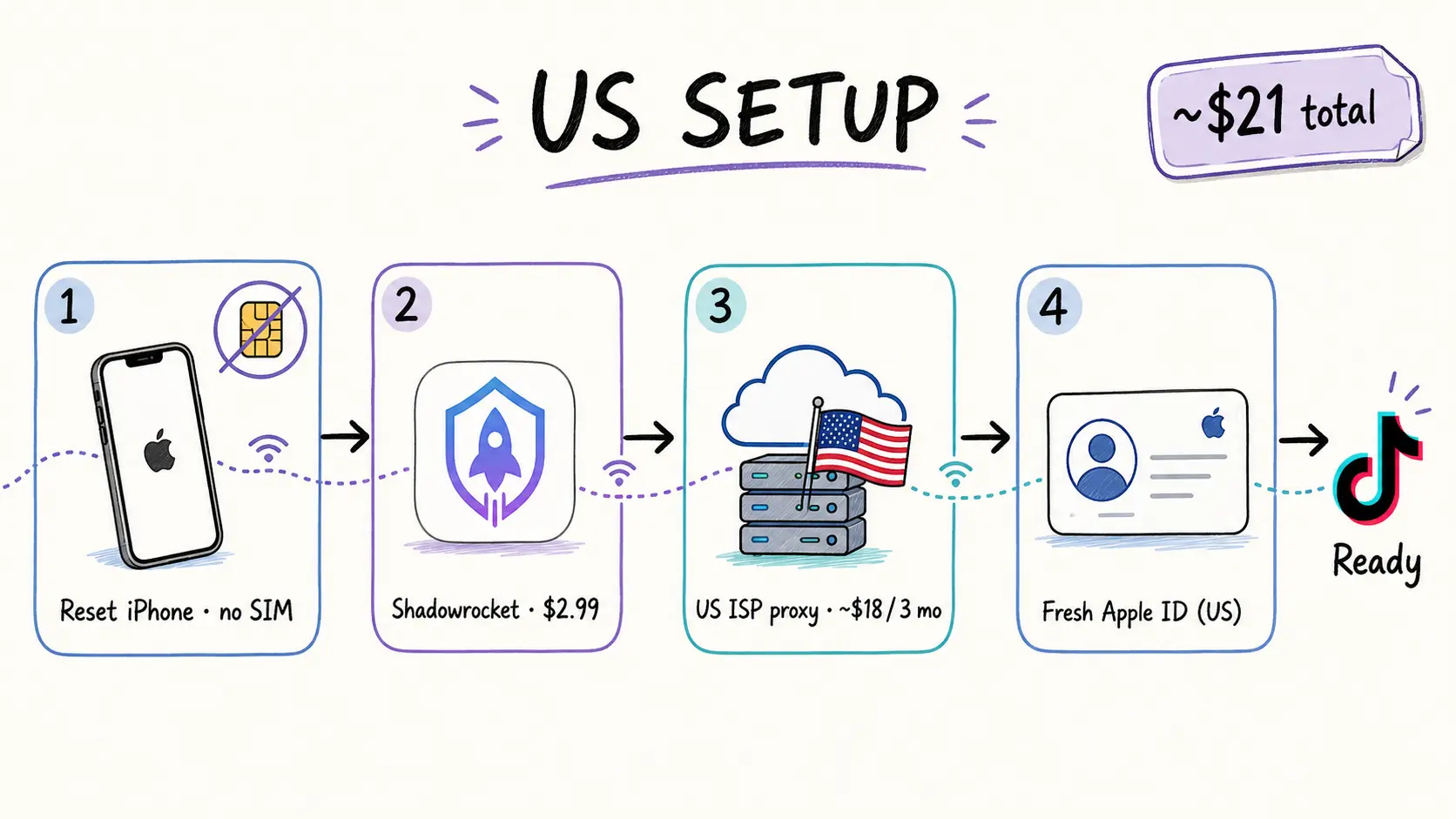
- A second-hand iPhone, or one sitting unused in a drawer - it will be fully reset
- No SIM card - the whole setup runs on wifi through the proxy
- Shadowrocket from the App Store - 2.99 dollars, one-time
- A US ISP proxy from IPRoyal - about 18 dollars for three months
- One never-used email address for a fresh Apple ID
- A free evening - the whole thing takes a couple of hours
That is the entire budget. No subscriptions you cannot cancel, no technical background needed - and the same phone can later warm the account too.
The setup, step by step
From the Hello screen, connect to your wifi normally - but pick United States as the country and English as the language. A clean device matters: a phone that has carried your local accounts keeps dragging old signals behind it. One fresh account per device at a time, per platform.
If Shadowrocket was bought before on another Apple ID, sign into that account from inside the App Store app ONLY - never in Settings - download it, then sign out immediately. An App Store sign-in just fetches the purchase; a Settings sign-in binds the whole phone to the old account and undoes the clean start.
Grab a US ISP proxy from IPRoyal (below). In Shadowrocket, add the SOCKS5 host, port, username and password they give you - and double-check the type really says SOCKS5. The next section explains why that one word decides whether any of this works.
With the proxy connected, make a brand-new Apple ID using an email that has never been used for anything, and sign the phone into it. Where the email itself was created barely matters - ours was made from a computer outside the US and it changed nothing.
Download both apps from the App Store. In TikTok choose sign up with email and use the fresh address. Do not touch phone-number signup - the number would leak your real country.
 Shadowrocket - App StoreThe 2.99 dollar iOS app that routes the phone's traffic through your proxy. One-time purchase.↗
This phone never needs a SIM card, and it should never use mobile data. Keep airplane mode switched on permanently, then turn wifi back on inside airplane mode and let Shadowrocket carry the connection. A carrier signal sits outside the proxy and hands your real country straight to the apps - which is exactly what the whole setup is there to prevent.
SOCKS5 or the HTTP proxy? This is where setups die
IPRoyal hands you two sets of credentials, and picking the wrong one is the single most common way this setup silently fails. The HTTP proxy only speaks web: point Safari at it and websites route through the US, but native apps - TikTok, Instagram, even the App Store - ignore it completely and keep connecting from your real country.
SOCKS5 works one level deeper. Shadowrocket tunnels every app's connection through it, so the whole phone - apps included - leaves from a US line. That is the difference between an account that reads as American and one that only pretends to in Safari.
| SOCKS5 (use this) | HTTP proxy (skip it) | |
|---|---|---|
| Works in TikTok and Instagram | Yes | No - apps bypass it |
| Works for websites in Safari | Yes | Yes |
| Covers the App Store and Apple ID | Yes | No |
| What TikTok sees | US connection | Your real country |
Nothing errors and nothing warns you - the phone just quietly keeps its real location, and every step after this point builds on sand. Thirty seconds of double-checking the SOCKS5 toggle saves the whole project.
The TikTok Shop check - your proof it worked
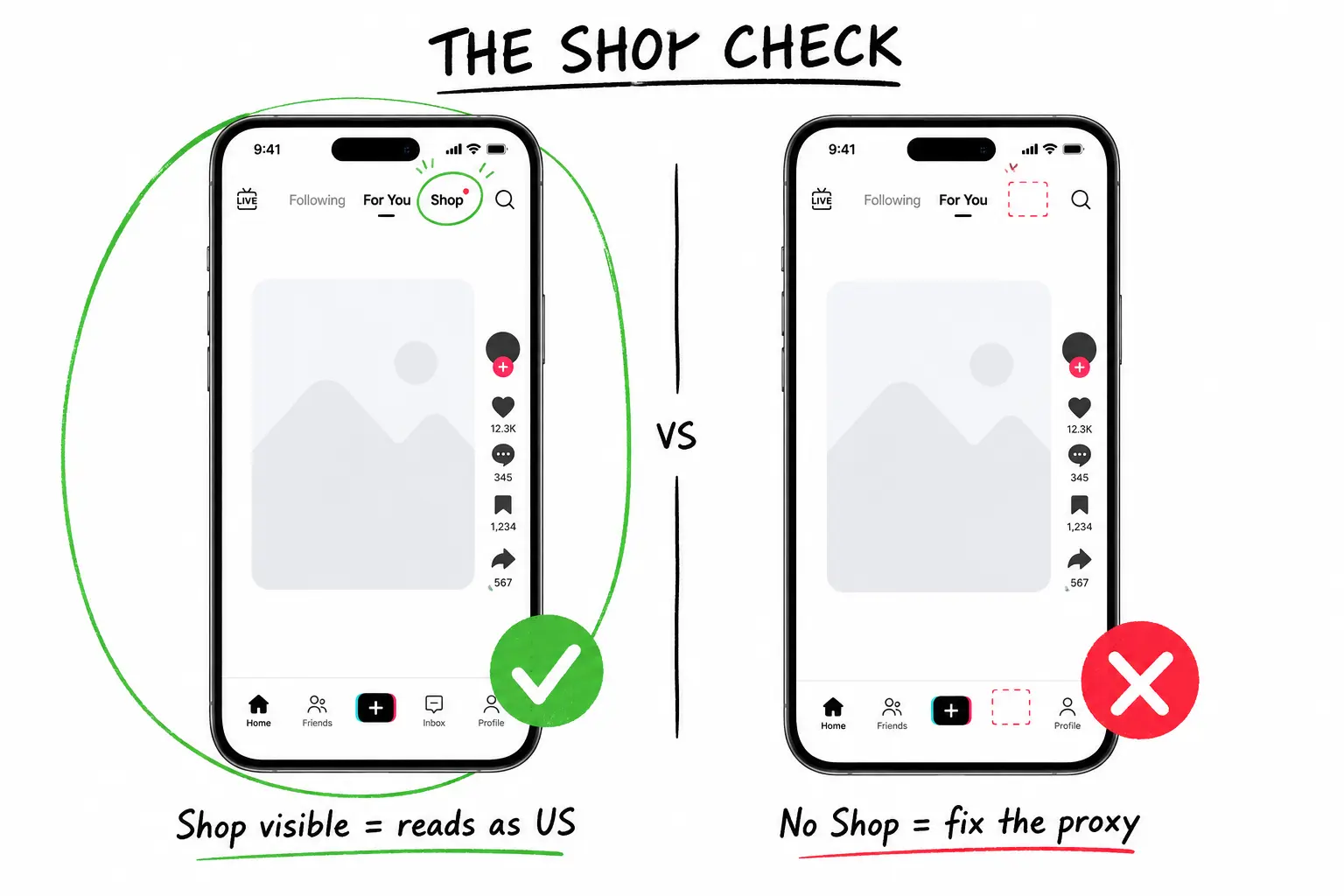
There is a beautifully simple way to know whether TikTok bought the story: open the app and look for TikTok Shop. Shop only exists in a handful of markets, the US front and centre - so its presence is TikTok telling you which country it thinks you are in.
The account reads as US. You are through - move on to warming it up.
Stop here. Do not post, do not fill the profile, do not connect anything. Fix the proxy routing first - usually the SOCKS5 mix-up above - then check again.
The mistakes that burn the whole setup
- Signing into the old Apple ID from Settings instead of the App Store
- Entering the HTTP proxy credentials and assuming they cover apps
- Posting on day one, before any warm-up
- Dropping a link into the bio in the first days
- Warming several fresh accounts on the same phone in the same week
- Buying followers or joining engagement pods to speed things up
None of these errors announce themselves. The account just quietly underperforms for weeks and you never find out why. The setup buys you the right audience pool - hooks, watch time and posting when America is awake still decide whether that pool watches, and the account remains subject to each platform's rules like any other.
Do not post yet - warm the account up first
At this point the account looks American. It does not yet look human, and posting on day one is how fresh accounts end up stuck at double-digit views. The first three days belong to watching, not publishing.
Our TikTok warm-up protocol - the exact sessions, what to like, when the first video goes up and what its views should tell you - is the next article below. Run it before the first upload.
Check safe zones, aspect ratios, subtitle timing and publishing copy in your browser—without creating an account.
Browse free tools →