
TikTok, Reels and Shorts safe zones: a practical guide
A platform interface can cover the most important sentence in a perfectly edited video. Use this workflow to keep text, faces and calls to action visible.
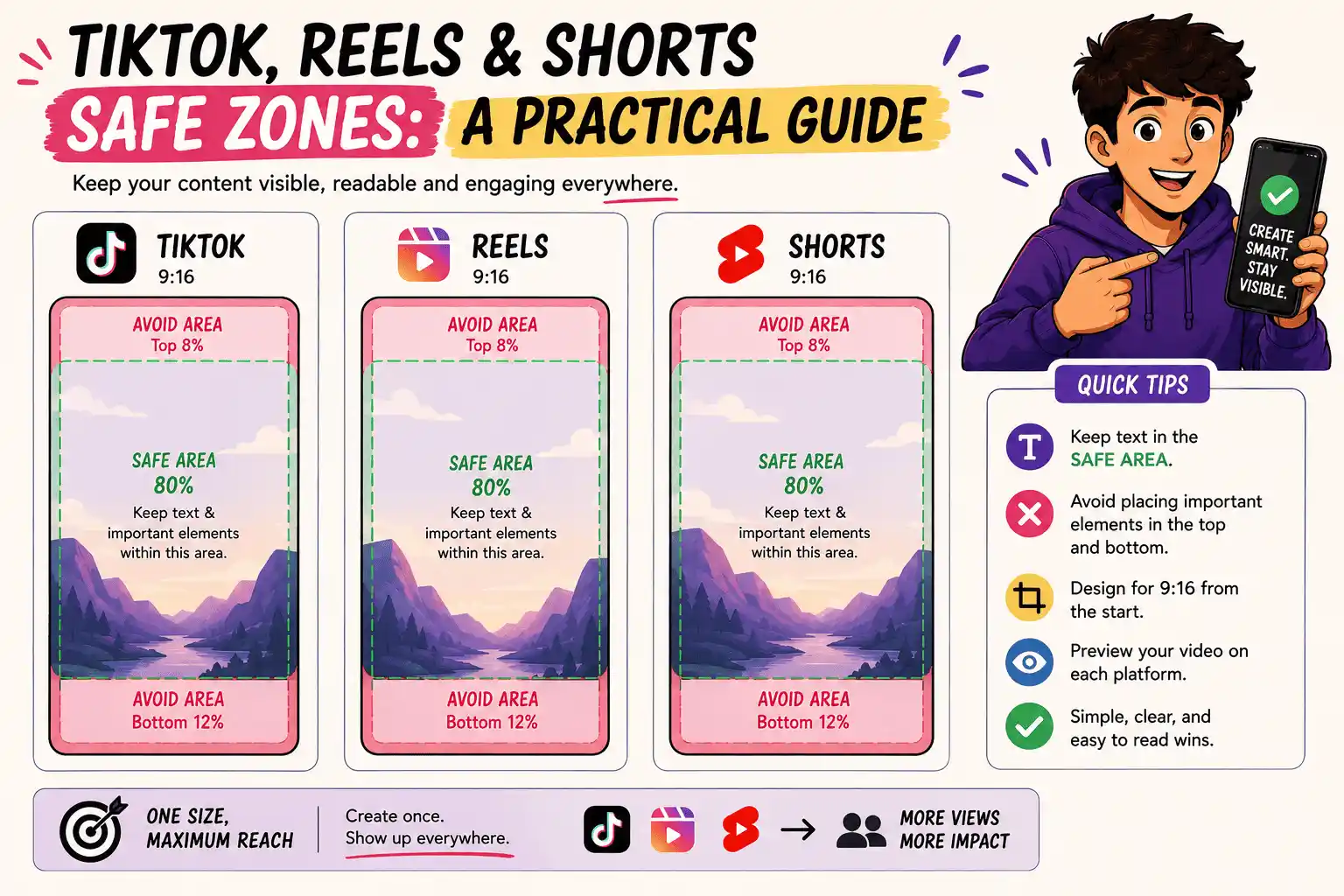
What a safe zone actually protects
A safe zone is the part of a vertical frame where important information is least likely to collide with interface elements. It is not one permanent rectangle shared by every app. Buttons, captions, account names and navigation occupy different regions on TikTok, Instagram Reels and YouTube Shorts.
Treat the safe zone as a review layer rather than a promise. Platform interfaces change, and the amount of visible video can vary by device, account state and placement.
Start with a 9:16 working canvas
For full-screen short-form work, a 1080×1920 canvas is the most dependable production starting point. It gives you a consistent frame for captions and lets the same master travel to the main vertical-video destinations.
Do not place important copy against the edge simply because it is visible in the editor. Edge-to-edge design and edge-to-edge information are different decisions.
Protect the right and bottom edges
The right edge commonly carries engagement controls. The bottom area can contain the caption, audio information and navigation. Keep calls to action, prices and subtitles inside a central working column and above the bottom interface region.
Faces deserve the same protection as text. A presenter cropped behind buttons feels accidental even if every word remains readable.
Use the three-pass phone check
First, watch the video with no overlays and check the edit. Second, enable a platform safe-zone overlay and check every text moment. Third, preview at phone size and watch without pausing. If a caption is only readable while paused on a large monitor, it is not ready.
Postelk's free safe-zone checker runs locally in the browser, so you can load a draft and switch between platform overlays without uploading the file.
A repeatable pre-publish checklist
- Keep the hook in the central region of the frame
- Leave breathing room below the final caption line
- Protect the right edge from engagement controls
- Use high contrast for every text moment
- Test the final rendered file, not only the design project
- Sending one master to several platforms? Review all three overlays
Keep the hook in the central region, leave breathing room below the final caption line, protect the right edge, use high contrast and test the final rendered file—not only the design project.
When one master goes to several platforms, review all three overlays. A layout that clears one interface can still fail on another.
Check safe zones, aspect ratios, subtitle timing and publishing copy in your browser—without creating an account.
Browse free tools →